
Expense management
Receipts in, policy-checked expense reports out, approved in the same flow as invoices.
Stream Expense Management captures receipts and supporting documents, extracts the data, excludes personal items, validates policy, codes categories and GL accounts, routes supervisor and department approvals and posts to your ERP. Approvers get one digest for invoices and expenses.
Deeply connected to the ERPs finance teams run
The expense flow
From receipt to ERP posting
The same approval engine, dashboards and audit history as AP, applied to employee spend.
- 1Capture receipts and supporting documents
Mobile photo, forwarded email, card feed or upload. Thumbnails stay attached to each line.
- 2AI extraction
Merchant, date, amount, tax, tip, attendees and currency extracted with confidence; category predicted.
- 3Build and submit the report
Lines grouped by trip or purpose; personal items identified and excluded from reimbursement.
- 4Policy validation
Limits, receipt rules, duplicates and custom rules checked before submission; exceptions explained with a justification.
- 5Coding
Expense category, GL account and dimensions (department, project, entity) applied per line, validated against the ERP.
- 6Approval
Configurable supervisor and department approvals, additional or one-off approvers, mobile and email approval, reminders and escalation.
- 7ERP posting
Approved reports post with attachments and approval status; status and payment flow back to Stream.
Capabilities, shown
Every expense capability with the screen where it happens
Report
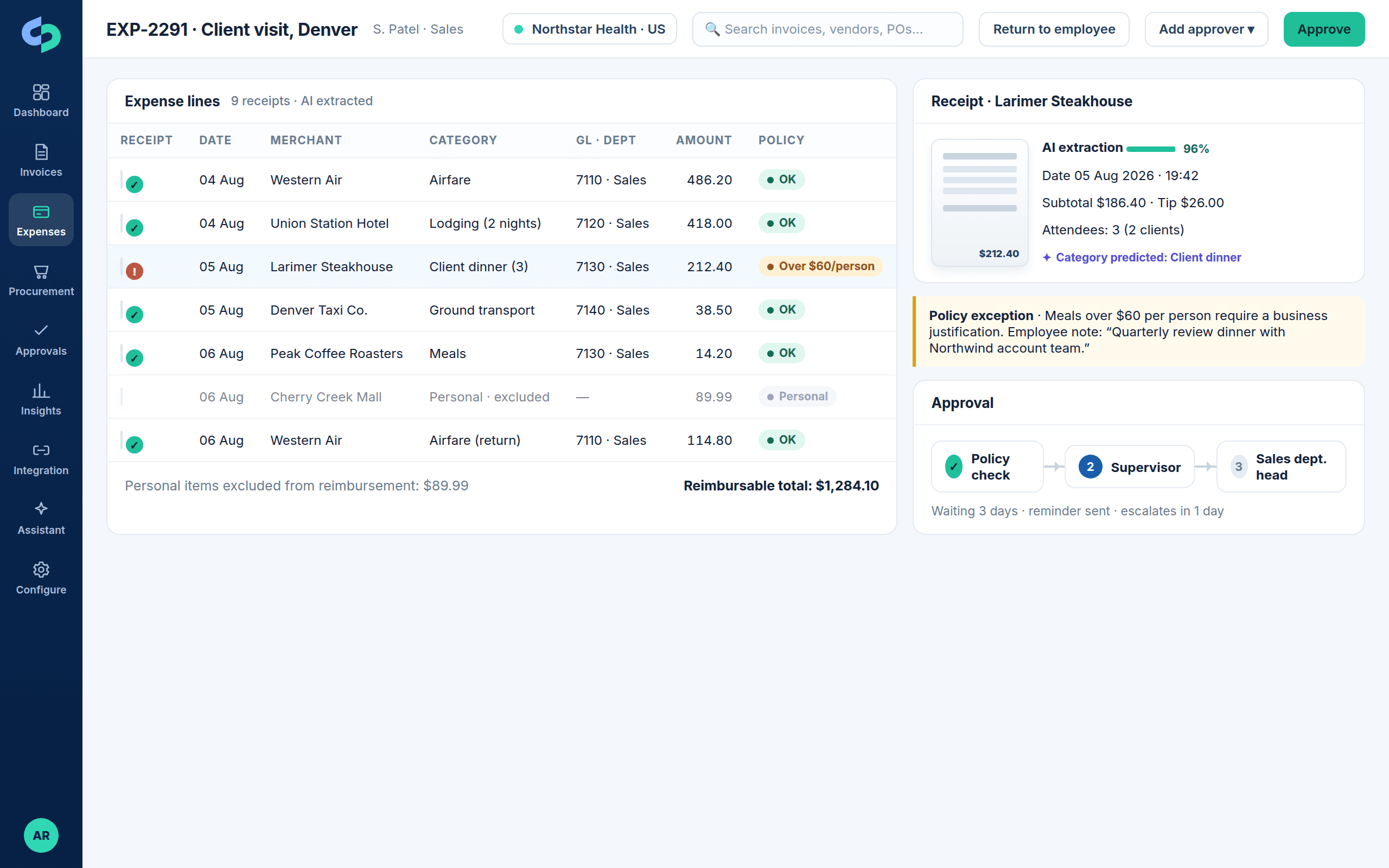
Expense report creation with receipt thumbnails and AI-extracted lines
Each line shows its receipt thumbnail, the extracted merchant, date and amount, the predicted category and the GL and dimension coding. Personal expenses are identified and excluded from the reimbursable total, and policy exceptions are explained on the line.
- Receipt and supporting-document capture
- Personal-expense identification and exclusion
- Category, GL account and dimension coding
Policy
Policy validation and exception handling
Per-person and per-diem limits, receipt-required thresholds, category rules, duplicate receipts and custom rules per entity or department run before submission. The employee sees what failed and why, adds a justification, and the approver sees both.
- Configurable per entity and department
- Exceptions visible to submitter and approver
- Blocking or warning behavior per rule
Approve
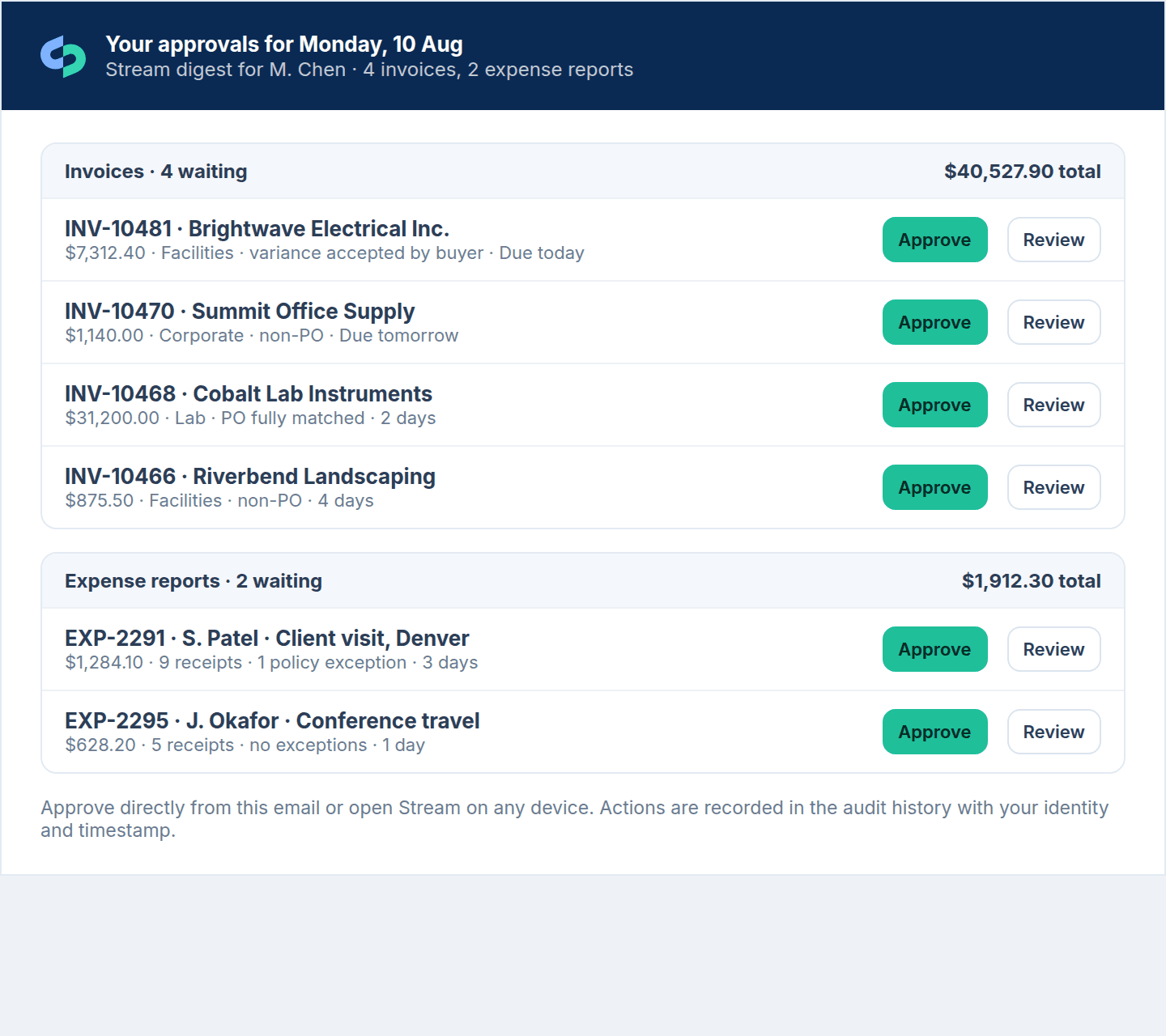
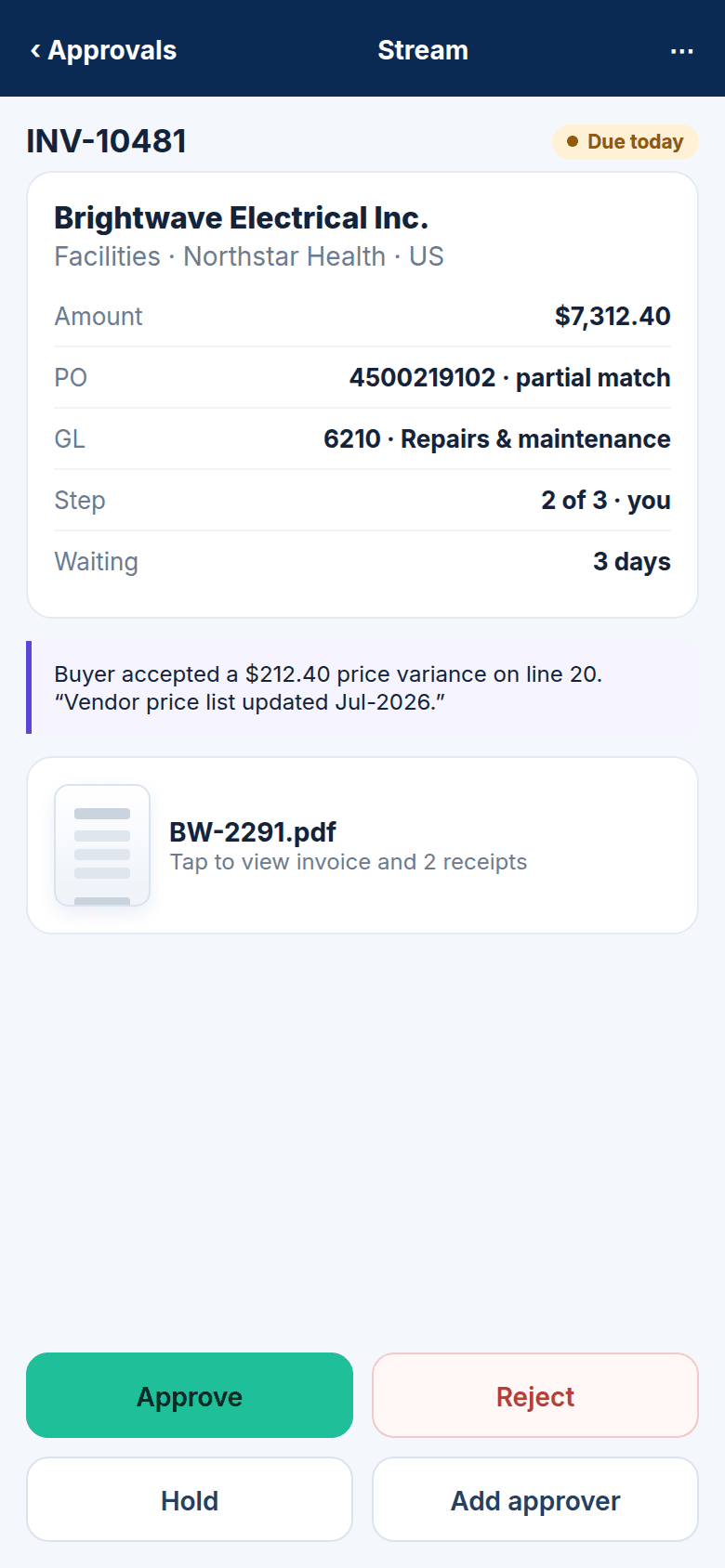
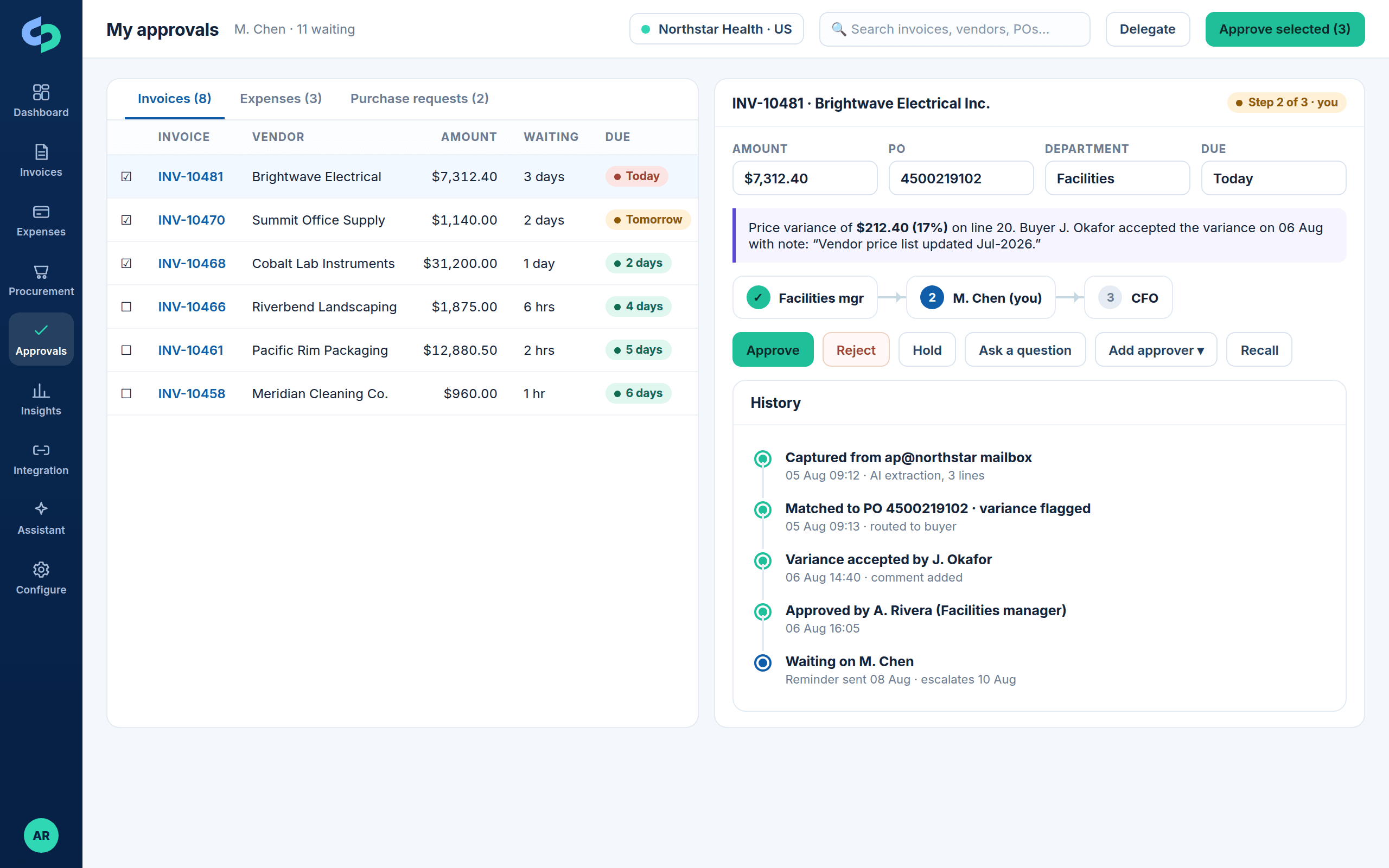
Configurable supervisor and department approvals, on mobile and by email
Route by amount, department, entity, project and role, add one-off approvers, and let approvers act from the combined invoice and expense digest, from a phone, or from the desktop queue. Waiting period, due date, reminders and escalation are visible on every report.
- Additional or one-off approvers
- Approval reminders and escalation
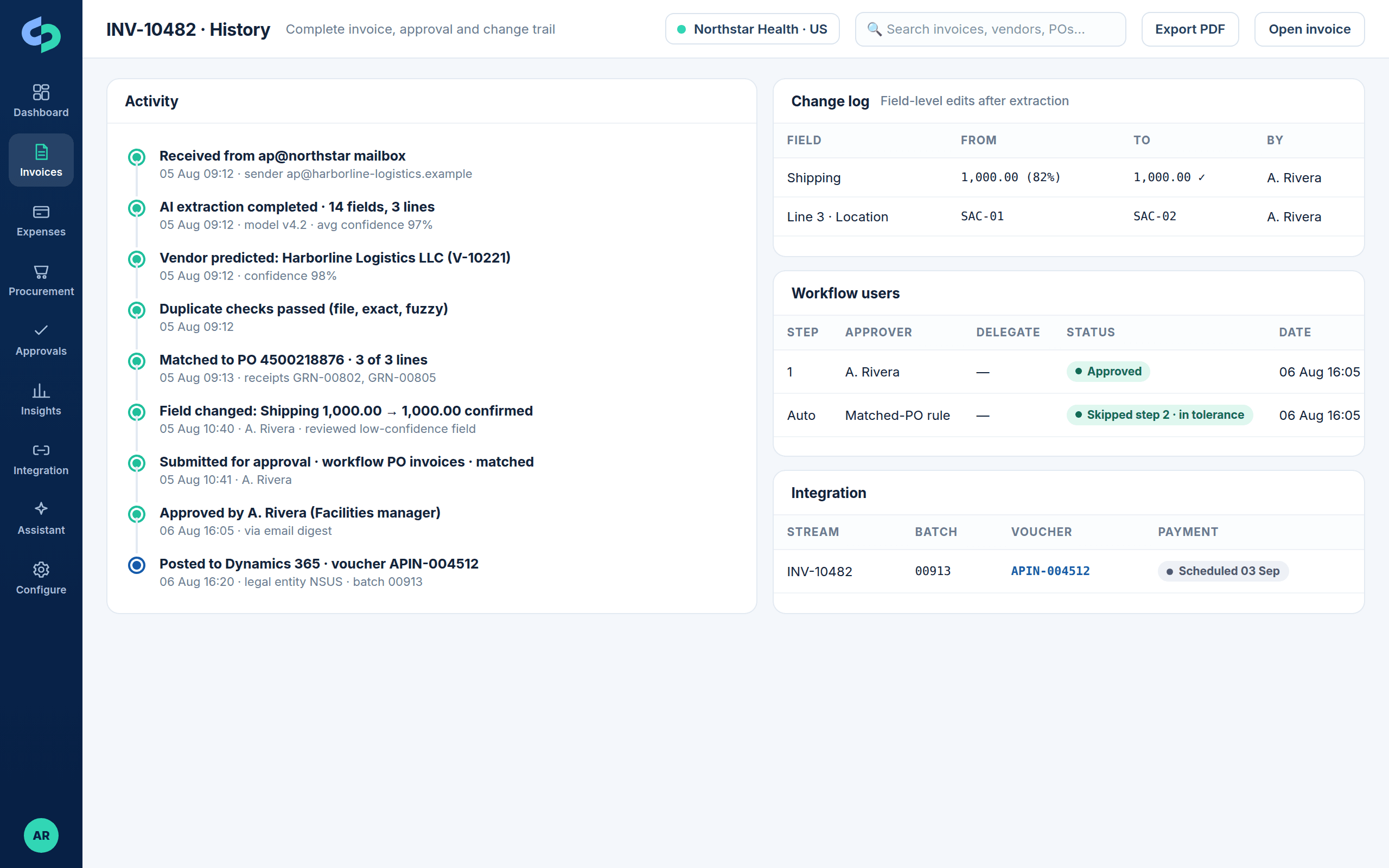
- Complete approval and change history
See and post
Expense dashboard, reporting and ERP integration
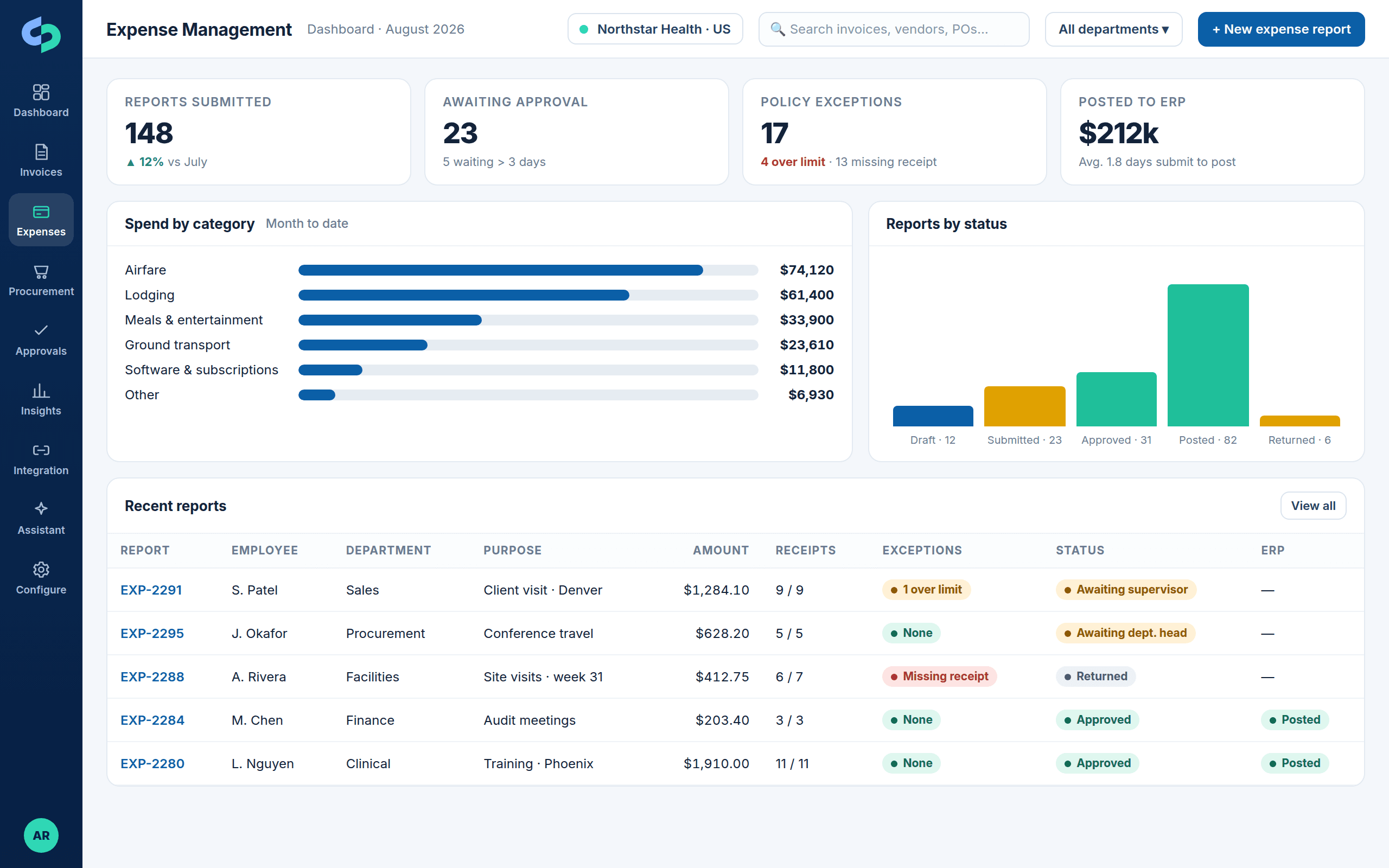
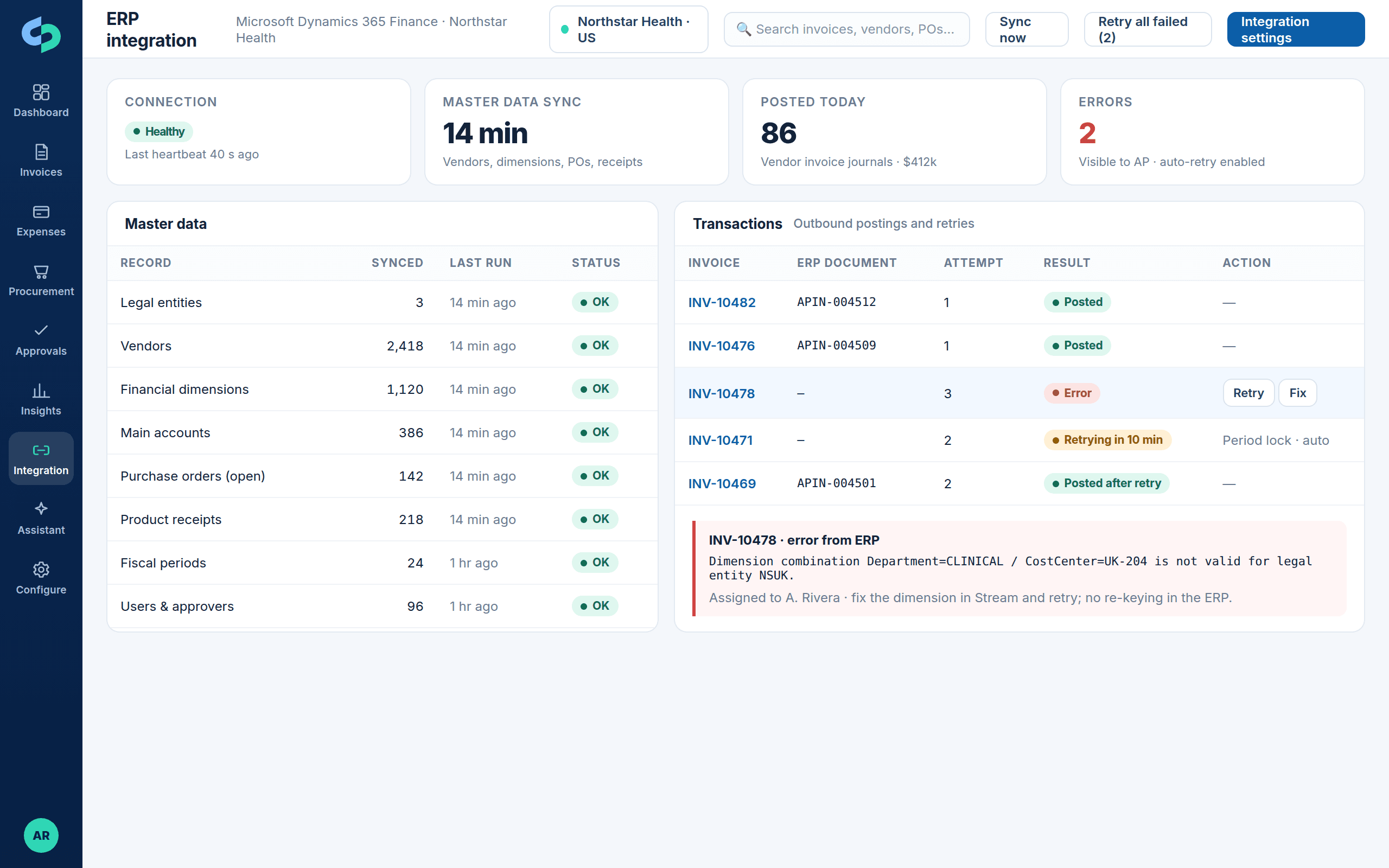
Reports by status, spend by category, department and employee, policy-exception trends and submit-to-post timing. Approved reports post to the ERP with attachments; integration status and errors are handled exactly as for invoices.
- Expense dashboard and reporting
- ERP integration and posting
- Integration errors resolved in Stream
Approver experience
Approve expenses from anywhere
Questions
Expense management FAQs
How are receipts captured?
Employees photograph receipts on mobile, forward emailed receipts, or upload supporting documents. Stream extracts merchant, date, amount, tax, tip and attendees, predicts the category and attaches the receipt thumbnail to the expense line.
What does policy validation cover?
Per-diem and per-person limits, category rules, receipt-required thresholds, duplicate receipts, date windows and custom rules per entity or department. Exceptions are explained on the report and require a justification before submission.
How are personal expenses handled?
Employees mark personal items (for example a personal purchase on a corporate card). Stream excludes them from the reimbursable total and from ERP posting while keeping them on the report for card reconciliation.
Who approves expense reports?
Configurable supervisor and department approvals by amount, department, entity, project and role, with additional or one-off approvers when needed. Approvers act from the combined invoice and expense email digest, mobile or desktop.
How do expenses post to the ERP?
Approved reports post with category-to-account mapping, dimension defaults and employee vendor or journal handling agreed during implementation, to D365 Finance & Operations, Business Central, NetSuite, Sage Intacct, QuickBooks or COINS.
Next step
Explore Expense Management with your policy
Bring your expense policy and a few real receipts. We will show capture, policy checks, approvals and posting to your ERP.